
The first step in using Tabulera’s Benefits Reconciliation Platform is uploading your source documents. Depending on the type of reconciliation selected, you may need to upload up to four types of documents.
Uploading Enrollment, Payroll and COBRA Remittance Data
The process for uploading Enrollment and Payroll data is identical. These files are typically generated from your Enrollment, HRIS, Payroll and COBRA vendors.
Before uploading, please download and use our file template to ensure the required fields are included.
→ Download Enrollment File Requirements
→ Download Payroll File Requirements
→ Download COBRA Remittance File Requirements
File Upload Process
 Note:
Note:
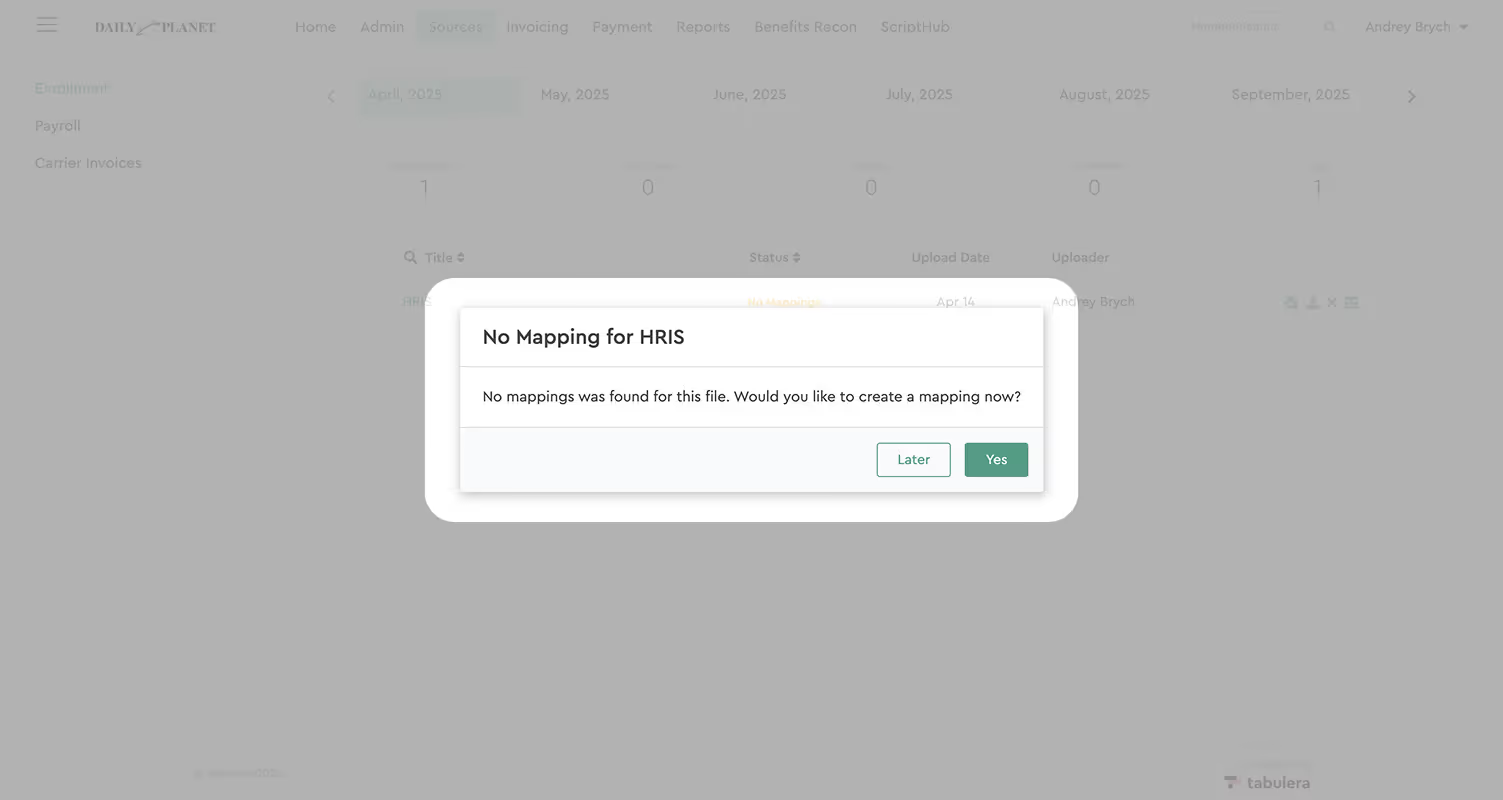
If this is your first upload, a modal window will appear prompting you to complete the file mapping. For subsequent uploads, click the Mapping button to open the mapping wizard.
Mapping Your Data
Data mapping means telling the system which columns in your file match the fields Tabulera needs—like saying “this column is the employee name” or “this one is the plan type.”
The mapping process is identical for Payroll and Enrollment. Mapping is typically done once, unless the file format changes. Tabulera’s built-in AI assists in mapping most fields automatically.
Let’s quickly review the mapping wizards interface.
Once all required columns and values are mapped, click **Submit Mapping**. You’ll be returned to the Sources menu and the file status will update to **Completed**.

Next Let’s switch to the Carrier Invoice Section.
Uploading Carrier Invoices
To upload a carrier invoice:
Note:
The Starter Plan supports CSV and XLSX formats.
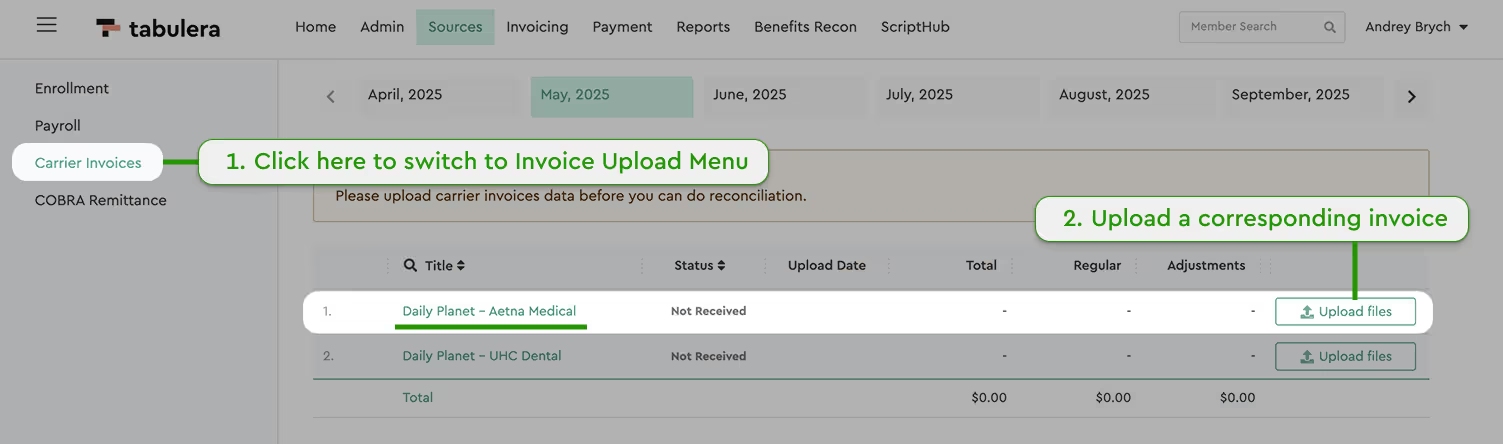
If it’s your first time uploading a specific invoice format, you’ll need to complete the mapping process. Future uploads will not require remapping unless the format changes.
Click the Mapping button to launch the wizard.
Locating Member Tables
Tabulera’s built-in AI will attempt to auto-detect the tables containing member data. If the selection isn’t accurate, you can click Remove and manually select the correct table.
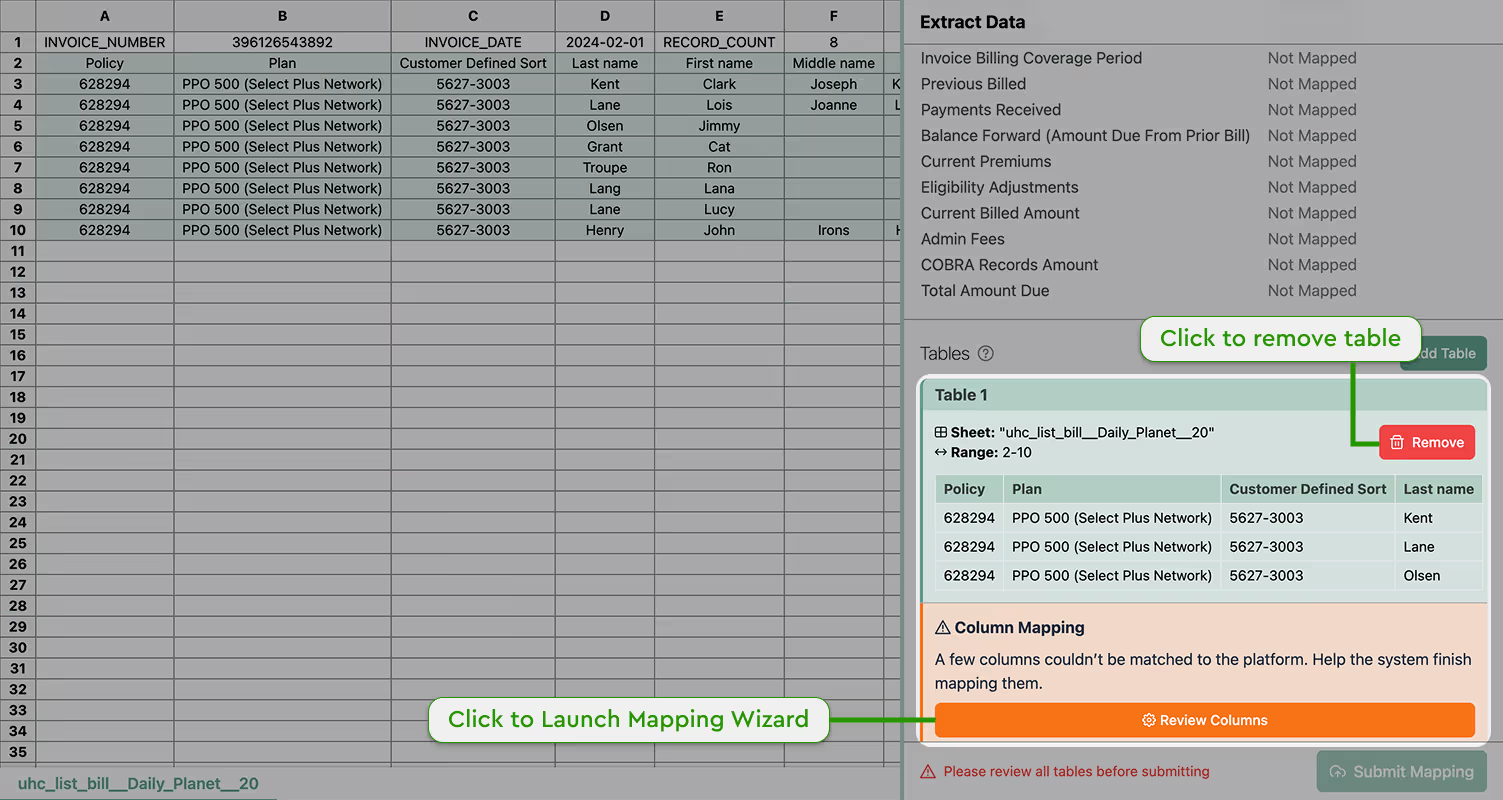
To Add and Remove a Table:
Mapping Invoice Columns
After selecting a table, you’ll see an orange section indicating that the columns aren’t yet mapped. Click Review Columns to launch the mapping wizard.
Click the dropdown next to each field and select the corresponding column in your invoice.

Mapping Invoice Values
Next, check any lines marked with a red asterisk (*). These values must be reviewed and confirmed using the right-side panel. Assign any unmapped values as needed.
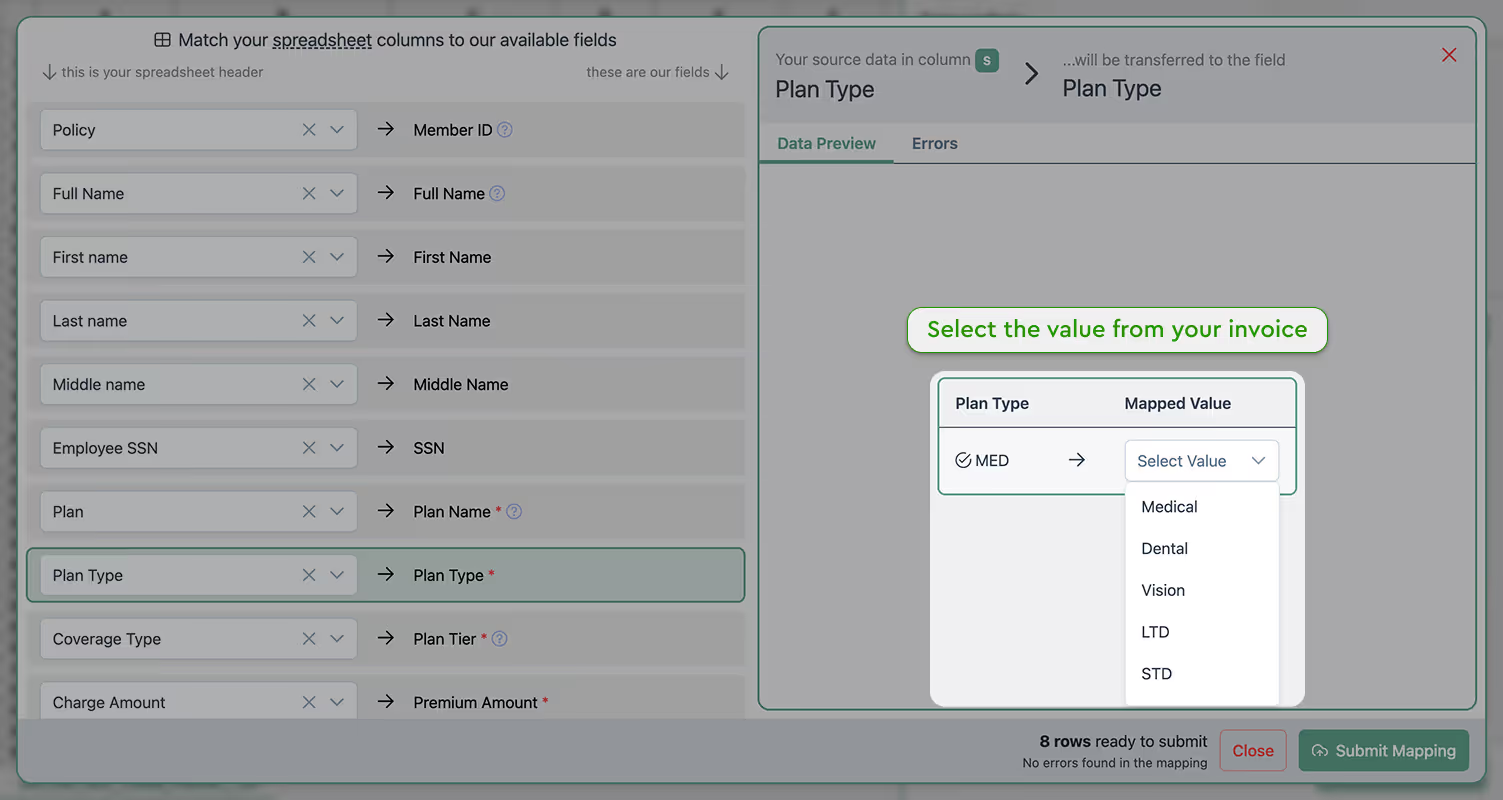
Next, check any lines marked with a red asterisk (*). These values must be reviewed and confirmed using the right-side panel. Assign any unmapped values as needed.
Once mapping is complete:

You’ll return to the Sources menu and the invoice status will update to Completed. Repeat for any additional invoices you plan to reconcile.
That’s it! You’re now ready to move on to the Benefits Reconciliation application.